
Wix has a setting for adding custom code to your site, and that is where the Orbis Chat snippet goes. There is no Wix app or one-click installer for it.
Before you start, check that you have verified your email address. The widget will not work until you do. The verification email comes from noreply@orbischat.co.uk, so check your spam folder if you cannot see it.
Add your snippet
Wix may rename its menus over time, so look for "custom code" in your site settings. Wix limits this feature on some plans, so check what your plan includes.
- Open your site's dashboard, and go to its settings.
- Find the custom code section, and choose to add code.
- Paste your snippet.
- Choose to apply it to all pages, and to place it at the end of the body.
- Save it, then check your live site.
<script async src="https://orbischat.co.uk/widget.js" data-key="YOUR_WEBSITE_KEY"></script>If you cannot add custom code
You do not have to miss out. A chat page gives you a hosted link for chat, with no website changes. Add the link to a button on your site, your social profiles or your email signature.
Test it
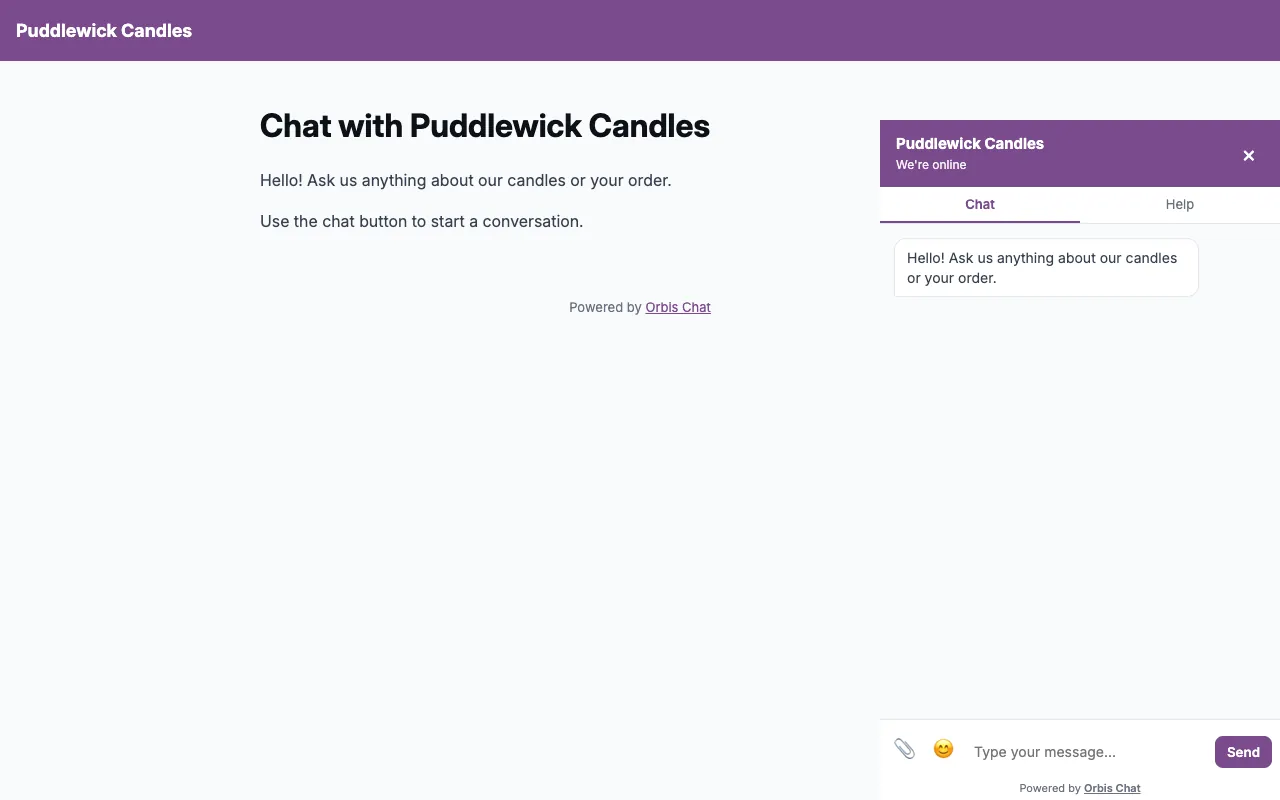
Open your published site in a private browser window. Custom code generally only runs on the live site, so do not rely on the editor preview.
Small businesses on website builders often use chat to save time on the phone. See how salons use live chat.
Frequently asked questions
Does this work on a free Wix plan?
Check what your Wix plan allows, as custom code may not be available on every plan. If it is not, use a hosted chat page instead.
What about Squarespace and other builders?
The same idea applies. If your builder lets you add a script to all pages, paste in the snippet.